
AI Kitchen Design from Photo: How to Plan Changes Safely
Upload a kitchen photo, test layouts, materials and finishes with AI, and verify results before ordering. AI kitchen design from photo, step by step.

You're in the doorway with your phone, trying to see walnut fronts on cabinets that are still oak. The island you want may not clear the fridge door. The quartz that looked warm in the showroom looks grey under your ceiling light. A photo can show those swaps in minutes. It cannot tell you which lines are real.
I judge every ai kitchen design from photo by three tags: what stayed from the original, what the model inferred, and what still needs a tape measure. Finishes are safe to talk through tonight. A moved sink is a question for a contractor, not an order.
Table of Contents
- What an AI Kitchen Photo Redesign Actually Changes
- How to Upload a Kitchen Photo and Get a First Render
- Testing Materials, Finishes and Furniture One Variable at a Time
- Finish and furnishing requests and what to check
- Scale is the furnishing test
- How to Test Layout Changes Against the Original Geometry
- Lock the facts, then move one thing
- Rejection checklist
- What AI Gets Wrong and What to Verify Before Ordering
- Common AI kitchen errors and how to verify them
- Finish swaps and utility moves are different decisions
- Turn Your Best Render Into a Verified Brief
<a id="what-an-ai-kitchen-photo-redesign-actually-changes"></a>
What an AI Kitchen Photo Redesign Actually Changes
An AI tool takes a photo of your existing kitchen and re-renders that same room with new finishes, furnishings, lighting, and sometimes a different layout, in minutes rather than the weeks a hand-drawn mockup takes.
People use it early, before money is committed. In a 2025 U.S. home-design survey published in the 2025 Home Inspiration Report, 30% of respondents said they would use AI to experiment with styles before committing, 30% to explore initial inspiration, and 28% to optimize layouts.
Sort the ask before you upload. The risk is not the same across the four kinds of change people request.
- Visual changes cover cabinet color, countertop, backsplash, and lighting. These are the right first pass.
- Furnishing changes cover stools, pendant lights, rugs, and plants. They stay low risk only if the scale matches the room you photographed.
- Layout changes cover a new island, a moved range, or a peninsula swapped for open floor. Treat every one as unproven until you check it against a real dimension.
- Structural changes cover a removed wall, a moved window, or relocated plumbing. Those belong with a licensed professional. A render is not a permit.
If you want materials and light to change while the underlying design stays put, the same restraint is what rendering without changing your design is built around.
Write down the three changes you are considering. Tag each one visual, furnishing, layout, or structural. Upload only after the tags are on the page.
<a id="how-to-upload-a-kitchen-photo-and-get-a-first-render"></a>
How to Upload a Kitchen Photo and Get a First Render
A clean first render depends on a straight photo, one real dimension, and a brief that names what must not move. Skip any of those and later versions drift.
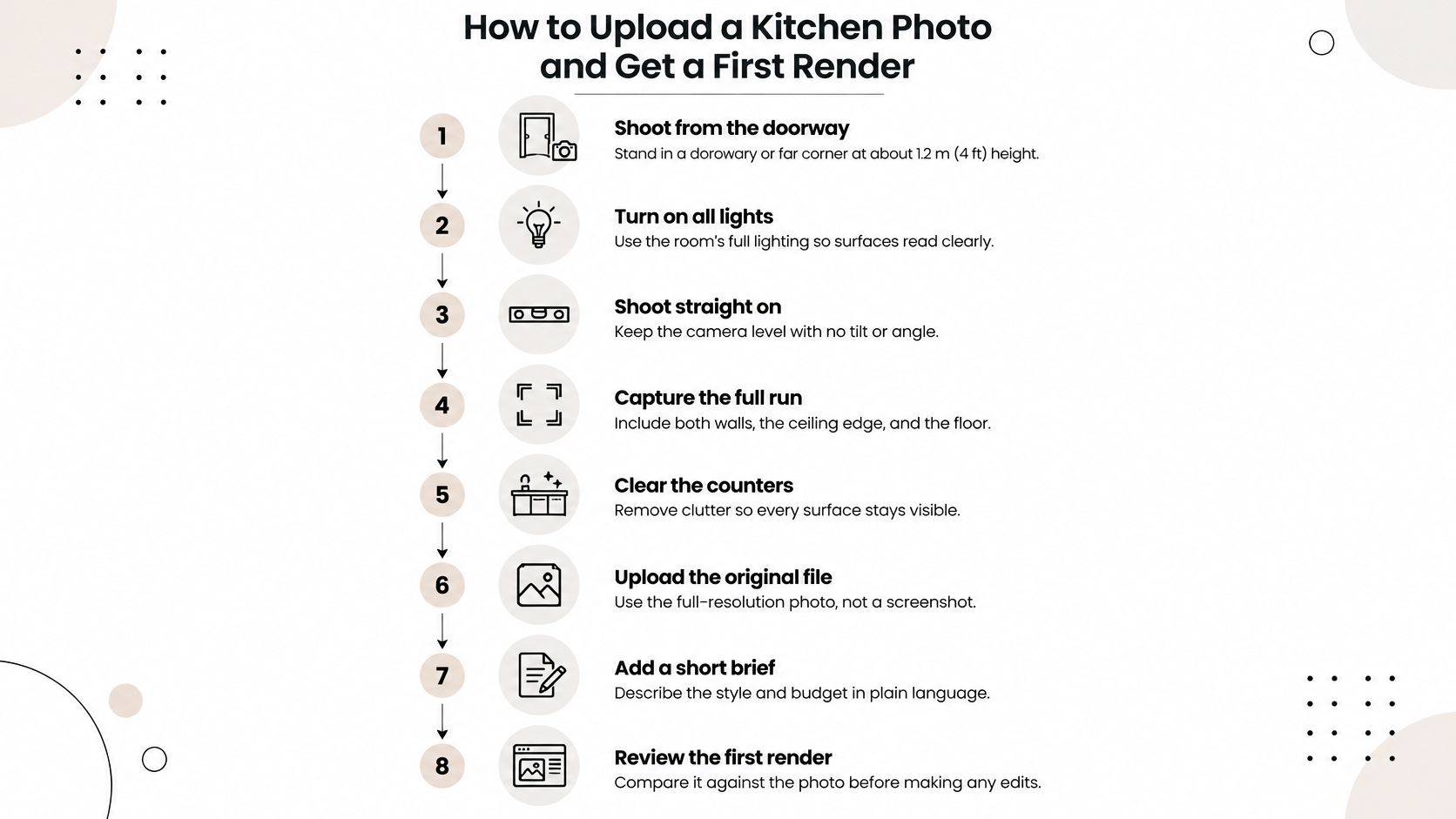
- Shoot from a doorway or the far corner, camera about 1.2 m (4 ft) off the floor, lights on, lens level. Get the full cabinet run, the ceiling line, and the window in one frame. A wide-angle phone lens bends cabinet stiles, so step back rather than zooming with your feet. The common miss is a tilted frame that makes the model invent a new perimeter.
- Measure before you upload. Record the base-cabinet run, the wall-to-wall width, the ceiling height, and one appliance width. A standard dishwasher is 24 in (610 mm), and that single number stops the model from guessing every other width. People skip this because the photo "looks complete," then argue with a render that has no scale.
- Upload the full-resolution file, not a screenshot, to a tool such as Rendervis. In one short brief, name what must stay: sink wall, window, and door. A bright, cluttered counter or a crooked camera makes the model guess those lines, so reshoot before you iterate.
- Ask for one visualization that keeps the room geometry and looks like a photograph of this kitchen, not a new room. Say photorealistic if you want materials to read, but do not pile on style words yet. A mixed first prompt hides whether the geometry held.
- Compare the first render to the original and confirm the window, sink, door, and range are still where they were. If any of those jumped, stop. Editing finishes on a shifted plan wastes the next hour.
- Change one thing per request, and start with finishes. A single swap shows you whether the tool can obey. Asking for walnut, a new island, and different pendants at once makes it impossible to see which instruction broke the room.
- Save each version with a short note of the one variable you changed. "V3, honed quartz only" is enough. Untitled downloads blur together by the third pass.
- Keep the untouched original as the baseline for every later comparison. That file is the only proof of what the camera actually saw.
Practical rule: If the first render moves a window to make the composition prettier, do not "fix it in the next prompt." Reshoot or rewrite the brief. Pretty drift is still drift.
Once the stills hold the room, a walkthrough from the same photos is useful only if those stills already match the openings. Motion will not repair a bad baseline.
<a id="testing-materials-finishes-and-furniture-one-variable-at-a-time"></a>
Testing Materials, Finishes and Furniture One Variable at a Time
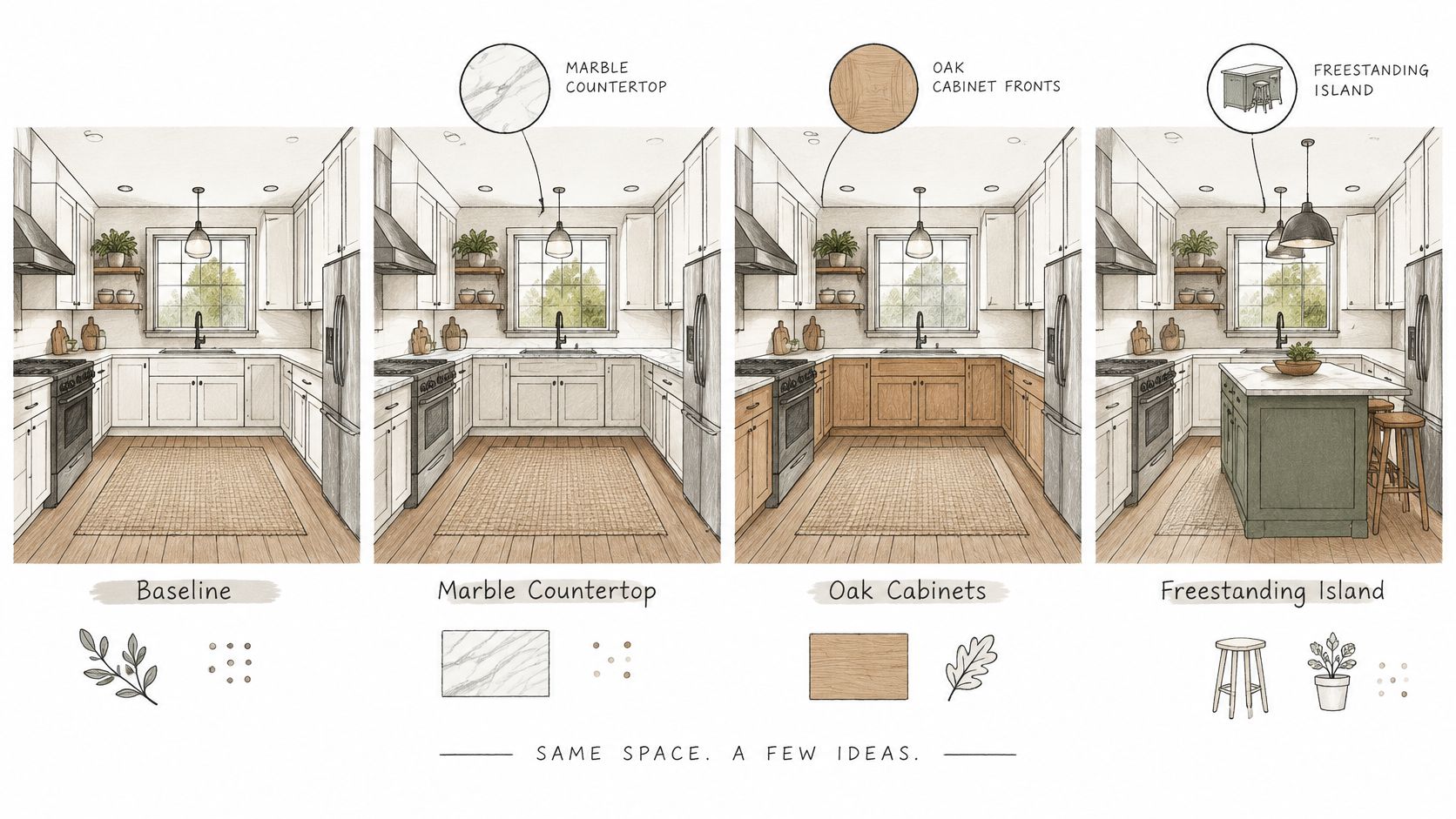
Change one thing per request. Keep the camera angle and the lighting fixed. Compare every output to the baseline photo, not to the previous pretty version.
The four frames below are the kind of set worth keeping: baseline, one countertop, one cabinet finish, one layout. Anything that changes two of those at once is not a test.
<a id="finish-and-furnishing-requests-and-what-to-check"></a>
Finish and furnishing requests and what to check
| Variable | Example single request | What to check in the result |
| --- | --- | --- |
| Cabinet fronts | Replace only the fronts with matte walnut, keep hardware and layout | Door count and panel layout match the original |
| Countertop | Swap laminate for honed white quartz with light veining | Edge profile and seam placement look plausible |
| Backsplash | Run 3 x 6 in subway tile in running bond | Tile scale reads correctly next to outlets and the hood |
| Flooring | Light oak planks running parallel to the windows | Plank direction and the threshold transition |
| Lighting | Warm 2700K under-cabinet strips, keep existing ceiling fixture | Light sources match the existing outlets and ceiling |
| Wall color | Sage green on the upper wall only | Color stays consistent across the same lighting |
| Stools and seating | Two counter stools for a 42 in island | Seat height and spacing look correct at the island scale |
Run palettes one at a time. "Matte walnut and brass hardware" is one set. A second prompt can try painted shaker and black pulls. A single sentence that blends both palettes produces a room nobody can order.
Warm and cool light will lie about color. The same white quartz reads yellow under 2700K strips and grey under a cool ceiling can. Judge finishes only when the light setting matches across variants. Any color you are considering should also sit next to a physical sample or a sample board. Screens and renders both shift tone.
<a id="scale-is-the-furnishing-test"></a>
Scale is the furnishing test
Furniture is where a convincing image most often falls apart. A counter stool seat is usually 24 to 26 in (61 to 66 cm) and belongs under a 36 in counter, about 10 to 12 inches below the top. A 42 in (107 cm) island is bar height and wants a seat closer to 30 in, not a counter stool. I would reject any render where the seat meets the overhang or the legs disappear into the floor. Spacing matters too: two stools crammed under a short return are a drawing error, not a seating plan.
Keep the variant that preserves door count, tile scale, and seat height. Drop the prettier one if those three slip. For the geometry conversation that follows, a simple set of architectural concept diagrams keeps the chosen palette attached to a plan instead of floating as a mood image.
The short clip below shows the same habit in motion: one instruction, then a look back at the source before the next edit.
<iframe width="100%" style="aspect-ratio: 16 / 9;" src="https://www.youtube.com/embed/qgNBqzEG-YY" frameborder="0" allow="autoplay; encrypted-media" allowfullscreen></iframe>
<a id="how-to-test-layout-changes-against-the-original-geometry"></a>
How to Test Layout Changes Against the Original Geometry
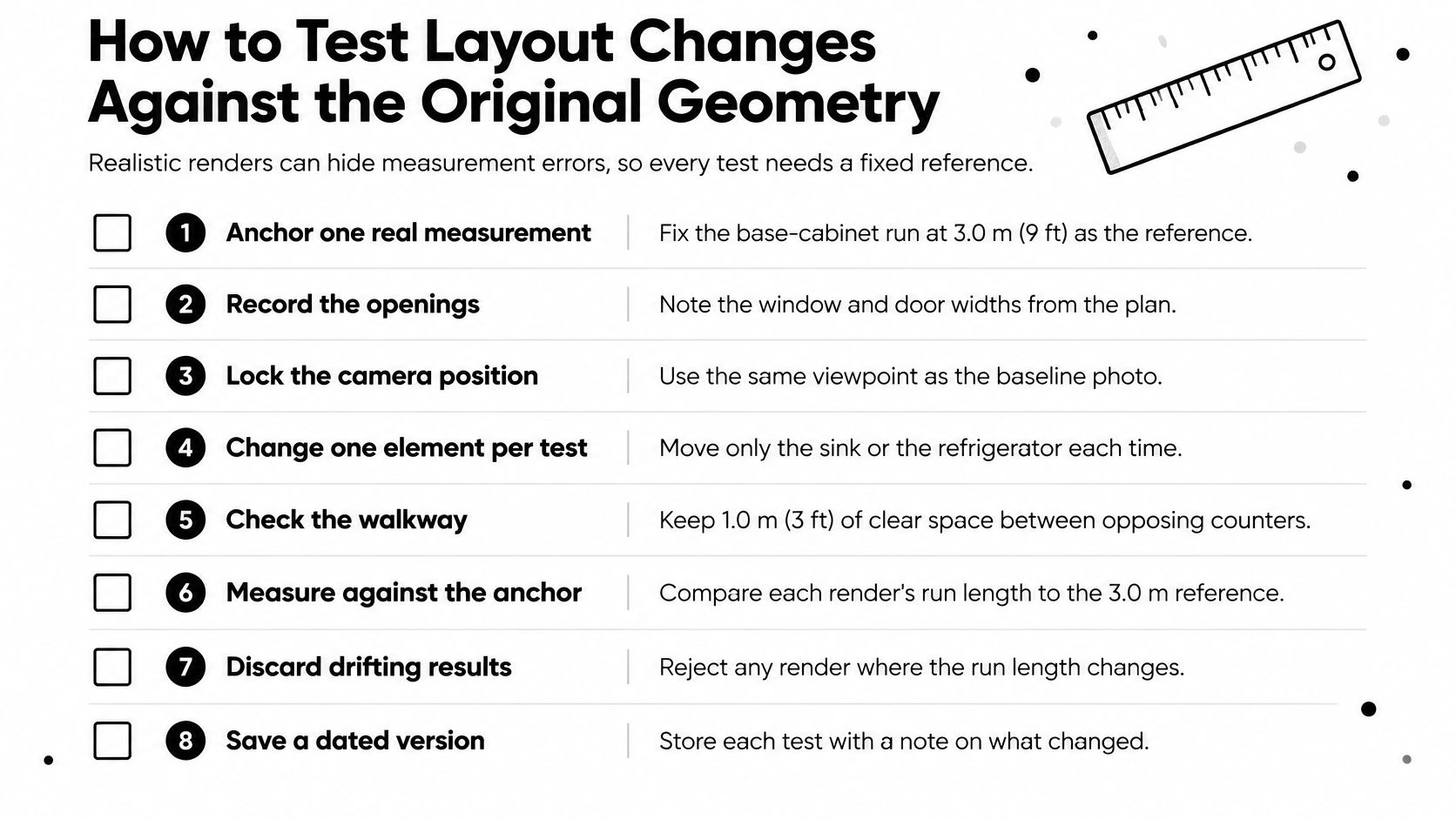
A layout render can look finished while the aisle, the island, and the range are the wrong size. You need one fixed reference before you trust any of it.
<a id="lock-the-facts-then-move-one-thing"></a>
Lock the facts, then move one thing
- Anchor one real measurement, such as a base-cabinet run of 3.0 m (9 ft 10 in). The model should scale from that number instead of inventing a tidy run.
- Mark what cannot move unless you say so: window, exterior door, sink, range, outlets, and the ceiling line. Write them as positions, not as style.
- Keep a design-facts block with dimensions, openings, utilities, and must-have appliances. Do not edit that block between requests. If you rewrite it to chase a nicer picture, you have lost the test.
- Put color, material, and styling in a separate note you can edit freely. Mixing "move the range" with "make it Japandi" hides which sentence caused the drift.
- Request one layout change. A 7 ft island with the sink wall unchanged is a fair test. Moving the island and the range in the same prompt is not.
- Apply the acceptance gate below. This gate only covers what you can see on the image. Tape, supplier specs, and electrical capacity come later.
- Enlarge the sink wall and the island edge. That is where cabinet depth gets invented and where a door swing dies against a new overhang.
A render that passes this gate is still a presentation visual. It is not a drawing you can build from.
<a id="rejection-checklist"></a>
Rejection checklist
Reject the output if any line below is true.
- Openings moved. A window, door, or ceiling line shifted without an instruction.
- Cabinet depth invented. Bases look deeper or shallower than the photo, with no measured reason.
- Plumbing relocated. The sink or a wet appliance jumped, and you did not ask for that.
- Appliances distorted. The range or fridge changed proportion against the anchor run.
- Work triangle blocked. The path from sink to range to fridge is cut by the new island or a door swing. Practitioners still use a total triangle of 12 to 26 ft (3.7 to 7.9 m), with each leg between 4 and 9 ft (1.2 to 2.7 m). If you cannot trace those legs on the image, the layout is not ready to discuss as a plan.
Save the rejected file with a one-line reason. A dated failure is more useful than another unmarked success.
<a id="what-ai-gets-wrong-and-what-to-verify-before-ordering"></a>
What AI Gets Wrong and What to Verify Before Ordering
A render can look convincing while cabinet widths, counter height, clearances, and circulation are wrong. A high realism score does not prove the layout works.
General viewers often accept that image. Designers do not. An evaluation of AI-generated interior designs, published in PMC, found that professional experts identified weaknesses in practical organization even when AI assessments were more favorable. AI scores were approximately 9% more positive, while human expert success averaged 77.1% across 14 criteria. I would hand the chosen variant to a designer or contractor before anyone talks about ordering.
<a id="common-ai-kitchen-errors-and-how-to-verify-them"></a>
Common AI kitchen errors and how to verify them
| Check | Typical AI error | How to verify |
| --- | --- | --- |
| Cabinet widths | Runs drawn in tidy standard sizes regardless of the real wall | Measure every run and match it to catalog widths in 3 in steps |
| Counter height | Counter drawn at an arbitrary height | Measure finished floor to countertop. Most residential counters are 36 in (914 mm). Reject a picture that does not match your tape |
| Appliance clearance | Ranges and fridges drawn flush against walls | Check the manufacturer's side and rear clearance specifications |
| Door and drawer swings | Swing arcs ignored | Measure the full arc of fridge and oven doors against the island |
| Outlets and circuits | Outlets missing or placed arbitrarily | Electrician confirms circuit capacity for range, dishwasher and ovens |
| Plumbing and ventilation | Sink or hood moved without notice | Confirm drain, supply and hood duct routes before any change |
| Walkway width | Aisles drawn narrow or wide without a basis | Measure clear paths: about 36 in for one cook, 42 to 48 in for two |
| Lead time and availability | Products shown with no supply information | Check supplier lead times before the design freeze |
<a id="finish-swaps-and-utility-moves-are-different-decisions"></a>
Finish swaps and utility moves are different decisions
When a render changes only fronts, stone, tile, or paint, the risk is mostly aesthetic. A wrong white costs a sample, not a rough-in.
When the same render moves a sink, a range, an outlet, or a hood, treat the image as a question list. Ask where the drain goes, whether the circuit exists, and whether the hood duct can reach the exterior. Do not treat it as a shop drawing.
Cabinet and appliance lead times can move your design-freeze date by months. Confirm the supplier's timing before you lock a layout around a product the picture merely suggested.
No cabinet, appliance, or electrical order should rely on the image alone. The picture speeds the conversation with the people who measure. It does not replace them.
<a id="turn-your-best-render-into-a-verified-brief"></a>
Turn Your Best Render Into a Verified Brief
Pick the two strongest variants. Write a one-page design audit for each, in four short blocks.
- Preserved: openings, appliance locations, and runs that still match the photo.
- Inferred: materials, colors, and furniture the model added from your prompt.
- Uncertain: any width, height, or clearance you have not taped.
- Field checks: the items a contractor, cabinet maker, or electrician must confirm on site.
Turn the uncertain block into questions, not into a purchase list. "Can a 7 ft island clear the fridge door on this floor?" is a useful question. "Order the island in the picture" is not.
After the geometry is verified, keep iterating in one thread. Bob is Rendervis's visualization agent: you upload a design and Bob brings an architecture, interior, or product design to life from written instructions, including further renders, variations, and videos. New users can try 5 free renders.
Outputs are illustrative. They are not construction documents, surveys, permits, manufacturing specifications, or a substitute for a licensed professional. The service does not guarantee photorealism or dimensional accuracy.
Upload the photo you shot in the first step and run that first variant set this week. Tag what was kept, what was inferred, and what still needs a tape.
Rendervis turns a kitchen photograph into renders, variations, and videos you can compare before anyone orders a cabinet. Use it to test finishes and layouts while you keep a record of what the original photo showed. Visit Rendervis and start from the photo you already have.
Generated with Outrank tool
Your next idea starts with Bob.
Bring a sketch, a photo, or a model. Tell Bob what you have in mind, and see where it takes you.
Get started