
From photos to a walkthrough with Blender, Unreal Engine, and AI.
Bring your photos or floor plan. Let AI help you model the space in Blender and bring it to life in Unreal Engine.
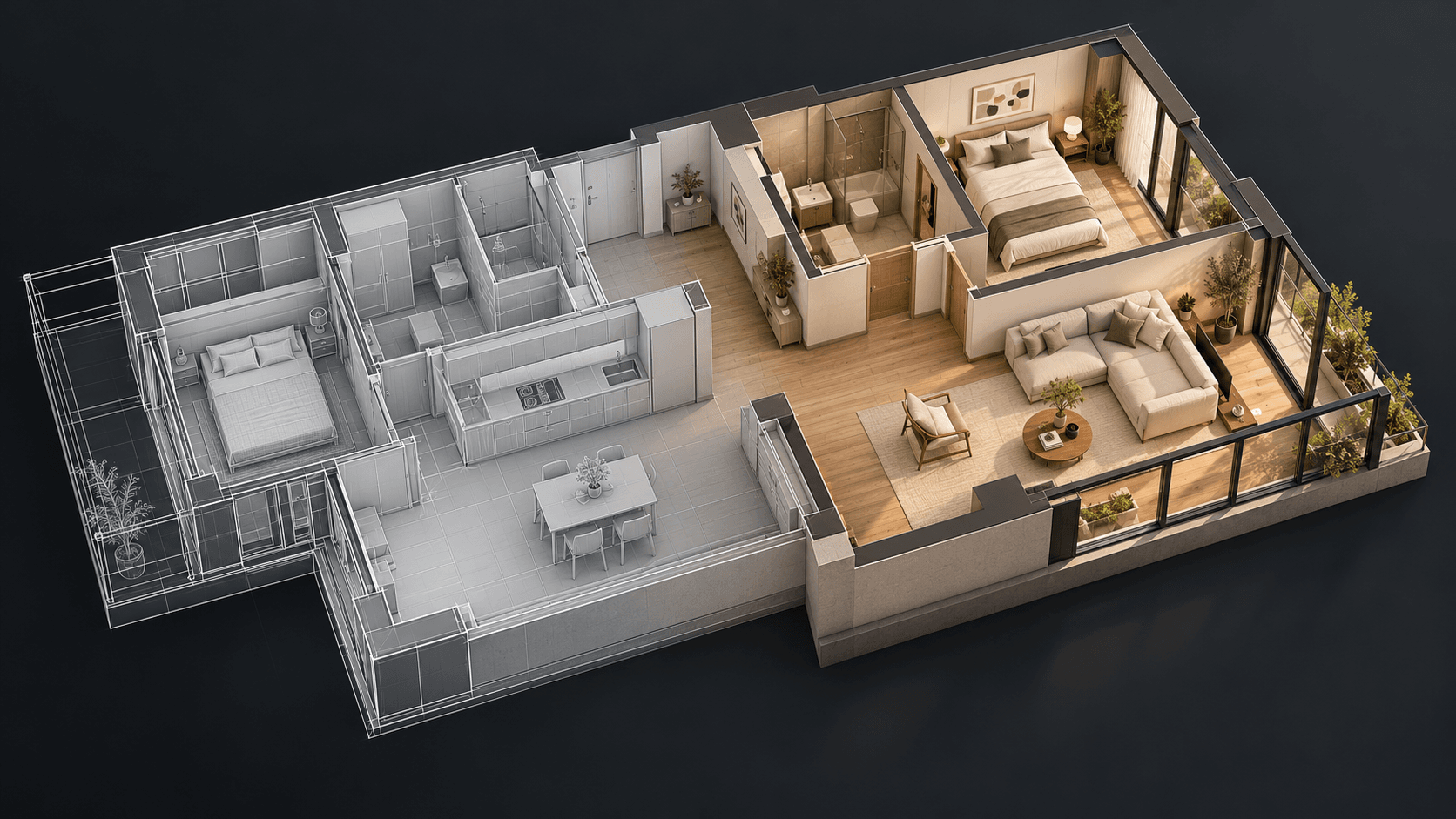
You can picture the room. Now you want to move through it. Start with this prompt, then shape the walkthrough one conversation at a time.
You have a few photos of a space. Maybe an apartment you are renovating, a house you are thinking about buying, or a room you have been designing for weeks.
You can see the individual views. What you really want is to walk through them. Open the front door, turn toward the kitchen, and understand how everything connects.
That is a useful project to try with Claude, Blender, and Unreal Engine. Blender is where you build the space. Unreal Engine is where you add lighting and movement so you can walk through it. Claude helps turn your references into a plan, create scripts, and work through the setup with you.
The starting point is a good brief. Below is one you can copy.
Gather your photos first
Choose photos that show different parts of the space, including doorways and corners. A beautiful close-up of a sofa tells the AI less about a room than a simple photo showing two walls and the entrance.
If you have a floor plan, upload that too. It helps explain where rooms sit in relation to one another. Add any measurements you know, even if it is just the width of the living room or the ceiling height.
Give the files simple names: living room, kitchen, hallway. Then add a sentence about anything that is hard to see: “The door on the left leads to the bedroom.”
You do not need a perfect collection to begin. Start with one room if that is all you have.
Copy this prompt
Use an image-capable Claude model in a coding workspace, and attach your references. You will also need Blender and Unreal Engine installed. If Claude has access to those applications, it can help carry out the steps. Otherwise, ask it to provide the scripts and exact instructions for you to run.
The first goal is a walkthrough you can try in Unreal Engine on your computer. Decide how to share it once that version works.
Help me turn my uploaded photos and floor plan, if included, into an interactive architectural walkthrough. Use Blender to model the space and Unreal Engine to build the walkthrough.
First, check the installed Blender and Unreal Engine versions and which tools you can actually access. Use documentation and APIs for those versions. If you cannot control an application, provide runnable scripts where supported and clear instructions for the remaining editor steps. Do not claim to have created or tested files unless you have.
Review all the references. Identify the rooms, doors, windows, and room connections. Use written dimensions for scale and the floor plan for the layout. Flag conflicting references. Separate visible facts from estimates, and ask about missing details that would materially change the layout. Do not invent rooms or doorways. If the photos are insufficient, request the specific additional views or measurements needed before modeling those areas.
In Blender, begin with a simple model of one room and its connection to the next. Build walls with real door and window openings, floors, and ceilings. Use real-world dimensions. Keep the geometry editable and organize objects with clear names. Save the source scene as a .blend file. Put adjustable dimensions in one clearly labeled section of any modeling script.
Work with me through a few rounds of revisions. After each preview, ask for my feedback, make the requested changes, and check the result again. Let me check the room proportions before adding detail. Then match the visible materials and main furniture as closely as the references allow. Keep uncertain areas simple and list your estimates.
Export the scene from Blender using an interchange format supported by the installed versions, such as FBX. Document the export and import settings. Verify scale, orientation, normals, and object placement in Unreal Engine using a known measurement. Check materials and textures after import, and rebuild materials in Unreal where necessary rather than assuming Blender shaders transfer unchanged.
In Unreal Engine, create a walkthrough level with natural-looking lighting, an eye-level starting position, and comfortable first-person movement. Include collision on floors and walls while keeping doorways passable. Avoid automatic jumping or camera bob. Add simple controls for moving, looking around, and resetting to the entrance. Target desktop first and tell me which operating system the result supports.
Test the first room in Play mode before expanding the scene. Check that I can move through the doorway, cannot pass through walls or fall through the floor, and see the materials correctly. Keep performance practical for my computer. Report anything you cannot test.
Deliver the Blender source file, exported assets and textures, the Unreal Engine project, and any scripts you used. Include short instructions for opening and exploring the project. If you cannot produce an artifact directly, provide the script or manual steps needed and mark it as unfinished. Once the walkthrough works, explain how to package it for my target desktop platform and which build tools are required.
My goal: [show a client / explore a renovation / present a property / other].
My computer and target platform: [operating system and hardware, if known].
Measurements and extra notes: [add what you know].
What if you only have a floor plan?
Use the same prompt, but replace the opening with:
Use Blender to model this floor plan, then create an interactive walkthrough in Unreal Engine. Use the labeled dimensions and preserve the room layout, doors, and windows. Ask me for a ceiling height if it is missing. Begin with simple walls, floors, and openings so I can check the space before we add furniture or finishes.
A plan gives you the layout. Photos help with how the space looks. When you have both, tell Claude to use each for that purpose.
Make the first version better with ordinary feedback
Expect to go through a few rounds of revisions with Claude. The first version is a starting point: a room may feel too narrow, a material may look wrong, or the movement may need adjusting. Try the walkthrough, tell Claude what feels off, and ask it to update the project. You may need to repeat this a few times before it feels right.
Once you can walk through the first room in Unreal Engine, compare it with your references. Check the room shape and connections before spending time on cushions or lighting.
You can keep the conversation simple:
The living room feels too narrow. It should be 4.2 metres wide. Keep the window on the same wall and update the room proportions.
Or:
Start at the entrance, facing into the apartment. Slow down the walking speed and reduce the mouse sensitivity.
For appearance, point back to a reference:
Use the floor and wall colors from living-room-02. Keep the layout as it is. Leave out any furniture you cannot see clearly.
Specific feedback gives Claude something concrete to change. One or two corrections at a time also make it easier to see whether the result improved.
What Claude needs to help you
Use a Claude model that supports images so it can inspect your photos and floor plan. You can find details in the Claude vision documentation.
Check whether your workspace lets Claude read your images, create Blender scripts, and help set up the Unreal project. Direct control of Blender and Unreal Engine depends on the tools connected to Claude; opening a chat does not automatically connect those applications. If they are not connected, Claude can write scripts and guide you through the steps you need to run yourself.
From Blender to a space you can walk through
The handoff between applications deserves a quick check. A room that looks right in Blender should have the same dimensions in Unreal Engine. A doorway should still be open. Materials may need adjustments after import. Epic's static mesh import guide explains the import process and notes that Unreal's default distance unit is one centimetre.
Start by exploring the scene inside Unreal Engine. A standalone desktop application is a separate packaging step. Sharing a browser link would need an additional delivery setup, such as streaming, so leave that until you know how your audience will use the walkthrough.
A little room for expectations
A few photos leave parts of a space unseen. Treat a generated 3D walkthrough as an approximation until you have checked it against measurements. It can help you explore a layout or explain an idea, but it should not become the source of dimensions for building work.
If you need a reconstruction based on photography, the capture process matters too. Reconstruction tools use overlapping views taken from different positions; a few disconnected listing photos may not be enough. COLMAP's photography guidance explains what makes a useful set.
For a first experiment, keep the ambition small: one room, a clear starting view, and a way to move around. Upload what you have, paste the prompt, and see how close the first version gets to the space you know.
Your next idea starts with Bob.
Bring a sketch, a photo, or a model. Tell Bob what you have in mind, and see where it takes you.
Try 5 free renders